![download.png]](https://support.yaktrak.com.au/hs-fs/hubfs/download.png?height=40&name=download.png)
Please note : Permissions to create a brand new team is restricted to YakTrak administrators only. Having said that, you can still create and add child teams however the Parent Team need to be initiated by YT admin.Please get in touch with us at support@yaktrak.com.au
Organisations may regularly form new teams or adjust their current structures, which may require the addition or removal of teams.
How to create a new child team?
- Click on 'Teams' from the Main Menu.
- Locate the team that will serve as the 'Parent team' for your new team. This is typically the team to which the new team will report.
- Click on the relevant team name.
- Click on 'Add Child Team' button as shown below. A pop up will appear with the option to either "Create a new child team" or Select from the drop down existing teams.
- Click "Create a new child team".
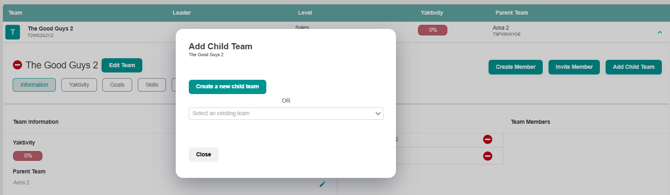
- A dialog box will appear prompting you to provide additional details.
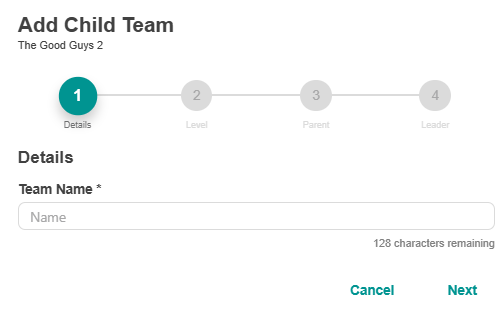
- Complete the four levels of details including:
- Team Name, Click "Next"
- Level: This dictates the cadence of team meetings for the team.
-
- Parent Team: Select the team you wish this team to report into (if you have added the team from the parent team, you can leave this blank)
- Leader: Select the team leader of the team if they already exist in the system
- Click on the 'Save' button.
- A confirmation message will briefly appear at the bottom of the screen indicating that the "Team Created" process was successful.
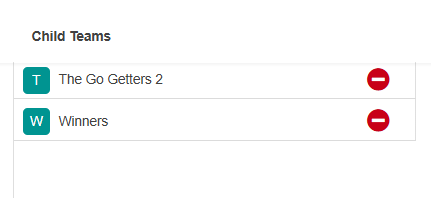
- After the process is finished, the newly created team will be listed in the 'Child Teams' section of your 'Information' tab, as illustrated below.