![download.png]](https://support.yaktrak.com.au/hs-fs/hubfs/download.png?height=40&name=download.png)
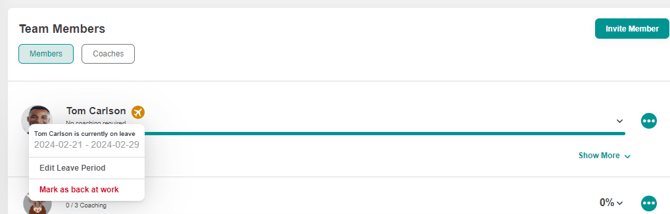
- On your Team dashboard, scroll down to the ‘Team Member’ widget.
- Click on the '…' on the right for the member who has been marked as "On Leave, indicated by the "Aeroplane" icon.
- Click on the "Aeroplane" icon.
- Select "Mark as back to work" as shown below.
Team member who are on leave for more than 50% of the requirement period, will be automatically exempted from needing coaching for a particular activity. This impacts only the leaders requirement and displayed as "No Coaching required" on the widget.
Team members who are on leave for less than 50% of the requirement period, will not be exempted and leaders are required to complete coaching for the rest of the remaining period.
For example: If the coaching requirement is weekly, and the team member is on leave for 2 days during the week, the coaching requirement will not be removed for that period meaning the leader still has 5 days to complete coaching