![download.png]](https://support.yaktrak.com.au/hs-fs/hubfs/download.png?height=40&name=download.png)
At times it will be necessary for a leader or administrator to update user information such as name, email address and passwords. (Note : Email address can only be updated for clients with no SSO)
Leaders can update users details for the users that report to them directly. Administrators can undertake this activity for anyone within your organisation.
Team members profiles can be updated via the 'Members' section on the main menu.
- From the main menu, click 'Members'. You will be see a list of team members you are authorised to update.
- Click the member you wish to update.
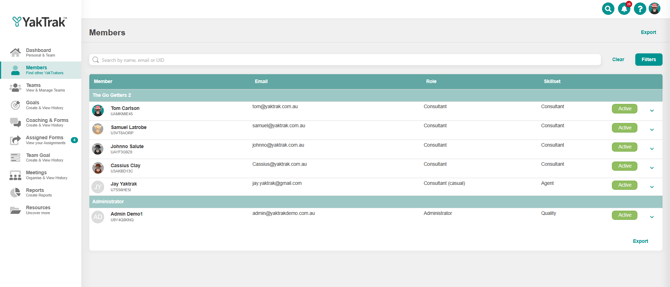
- Click the 3 dots on the right across the member name. Select 'Edit'
- You will be presented with a user Profile pop up as shown below.
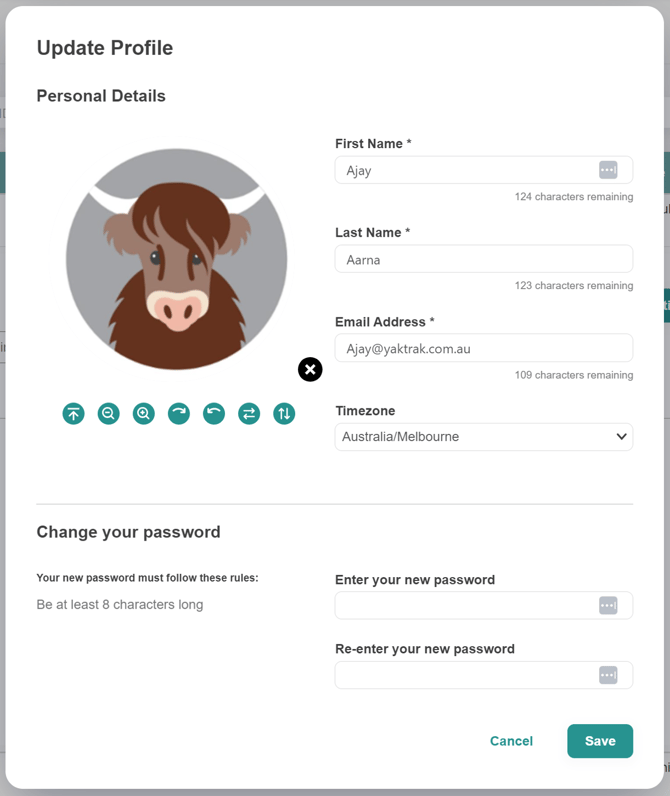
- From here update:
- Team member name
- Team member email address
- The time zone a team member lives in
- The password for the team member ensuring to cover the password requirements on the left hand side.
- Select 'Save'