![download.png]](https://support.yaktrak.com.au/hs-fs/hubfs/download.png?height=40&name=download.png)
If you need to grant someone access to your team—such as when a leader is on leave or you have a second-in-charge supporting team coaching—you can assign them ‘Coach’ access to your team.
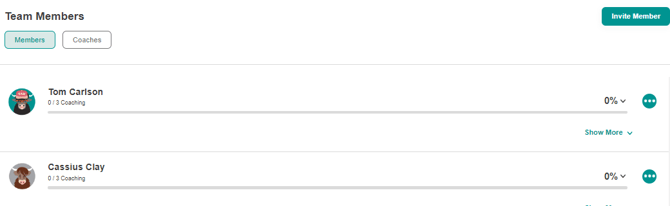
- Click on the 'Invite Member’ button located to the right of the Team members box.
- The "Manage Members" pop up window will appear
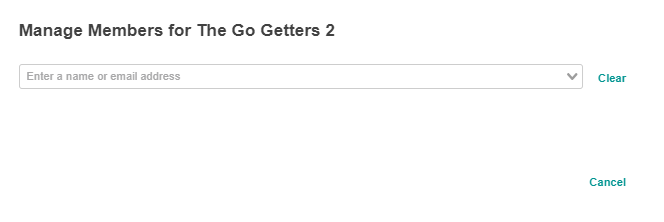
- Type the team members name in the drop-down box
If the team members name does not show up they either dont have an YakTrak account or haven't activated it. Please reach out to your YakTrak Administrator.
- Select the relevant team member's name. The above search window will expand and more information on the membership type will appear as below.
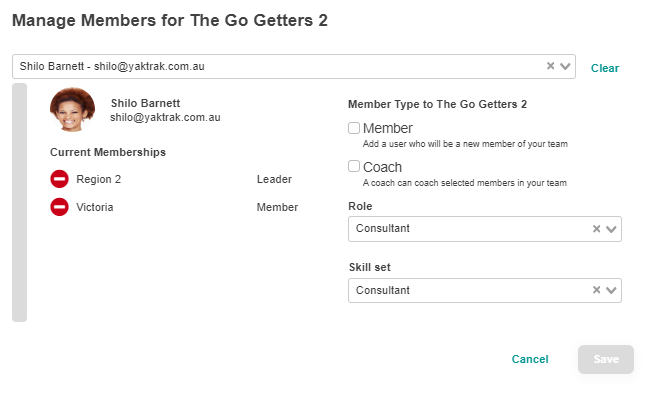
- Ensure you have selected the correct team member.
Please note: Under 'Current Membership' you can remove the team member from old teams (Only if applicable). You dont need to remove them if they still belong to the team. Simply click the red delete icon on the left of the teams you are removing them from and their membership will be updated accordingly.
- Tick the box next to 'Coach' for the Member type or
Please Note : Adding an existing team member solely as a 'Coach' does not grant you the ability to coach them. To coach a member, you must also add them as a 'Member'. This requirement does not apply to team leaders
- Click on 'Save' once completed.
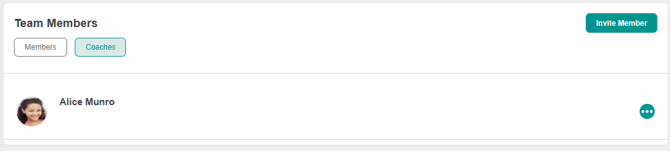
- They will appear in your 'Team Members' widget under a 'Coaches' tab (see below)