![download.png]](https://support.yaktrak.com.au/hs-fs/hubfs/download.png?height=40&name=download.png)
WHAT IS COACHING TRANSCRIBE AND SUMMARISE?
Coaching Transcribe & Summarise feature records coaching and development conversations and turns them into an accurate written record automatically. This feature provides you 2 options :
-
Upload Transcript: Upload an existing transcript from a completed Zoom or Teams meeting. The AI will use the transcript to generate a summary and coaching insights.
-
Start Session: Record the coaching session live. The AI will transcribe the conversation in real time and automatically generate a summary and coaching insights.
Key discussion points, agreed actions and outcomes are captured in a structured summary, so leaders stay present in the conversation instead of taking notes.
Summaries flow straight into the coaching record, improving quality, consistency and follow-through at scale.
WHERE CAN I SEE THIS FEATURE?
Typically, this can be found on the forms your organisation has enabled this feature for. For example, it will usually appear as a field within your Coaching Observation Form or Coaching Session Form.
HOW TO USE THIS?
Depending on how you access the form—whether through the Me Dashboard or Team Dashboard—you’ll be able to view this field within the selected form.
ME Dashboard
-
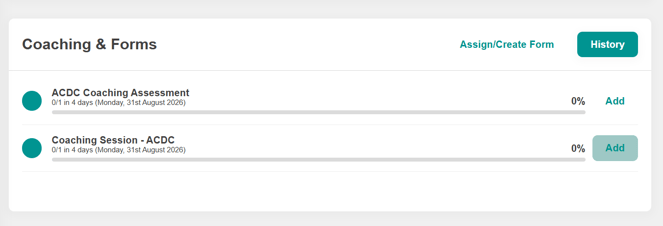
Navigate to the "Coaching & Forms" section
-
Click "Add" label across the Coaching Form.
Team Dashboard
-
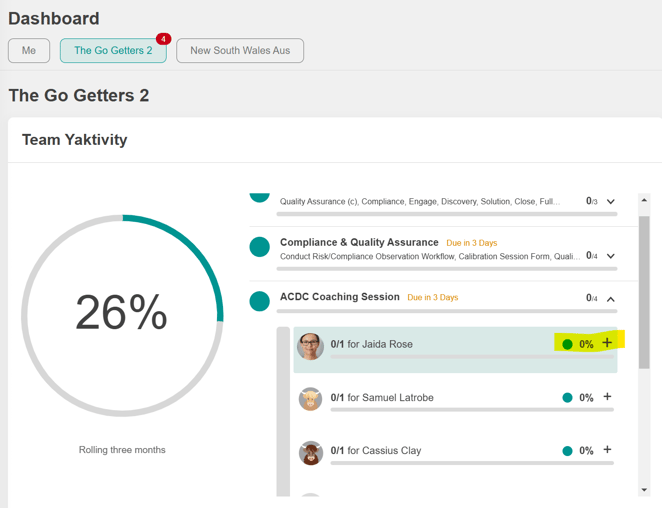
Navigate to the "Team Yaktivity" section
-
Click the dropdown arrow across the Coaching form and click the "+" across the team member.
- This will open the form with the Transcription Field located either at the top or bottom of the form. The placement is determined by your project team.
- Click "Upload Transcript" if you are uploading an existing transcript from a completed Zoom or Teams meeting.
- Click "Start Session" if you want to transcribe the coaching session live. This will open the "Transcribe & Summarise" window, where the AI runs quietly in the background and transcribes the session in real time. You can "Pause" and "Resume" the recording at any time.
Please note: Session recording tips are available on this screen to help ensure the recording environment is suitable for the best possible audio quality.
- Click "Start Recording" once you have completed all the checks. This will open the "Session Recording Consent" screen, where you can review the Privacy Policy if required.
- Click "Confirm & Continue" to begin the countdown and start recording.
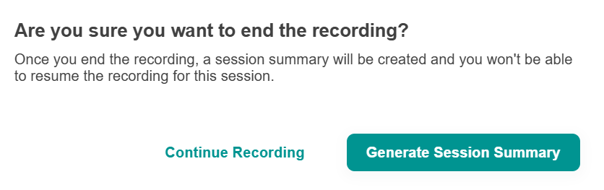
- Click "End Recording" when you have finished the session. You will be prompted to confirm that you want to end the recording.
- Click "Generate Session Summary" if you have finished the session, or click "Continue Recording" if you would like to continue recording.
- Once the summary has been generated, the panel on the right will be updated with the Session Summary. You can click "Edit" in the right-hand panel at any time to update or remove details from the summary before saving.
- Click "Finish & Save the Form" to submit the summary. This will save the summary to the form. To ensure the form is fully saved, also click "Save" at the bottom of the form.
Leaders must still create and save their goals before saving the form.